Your iPhone.
Your mirror.
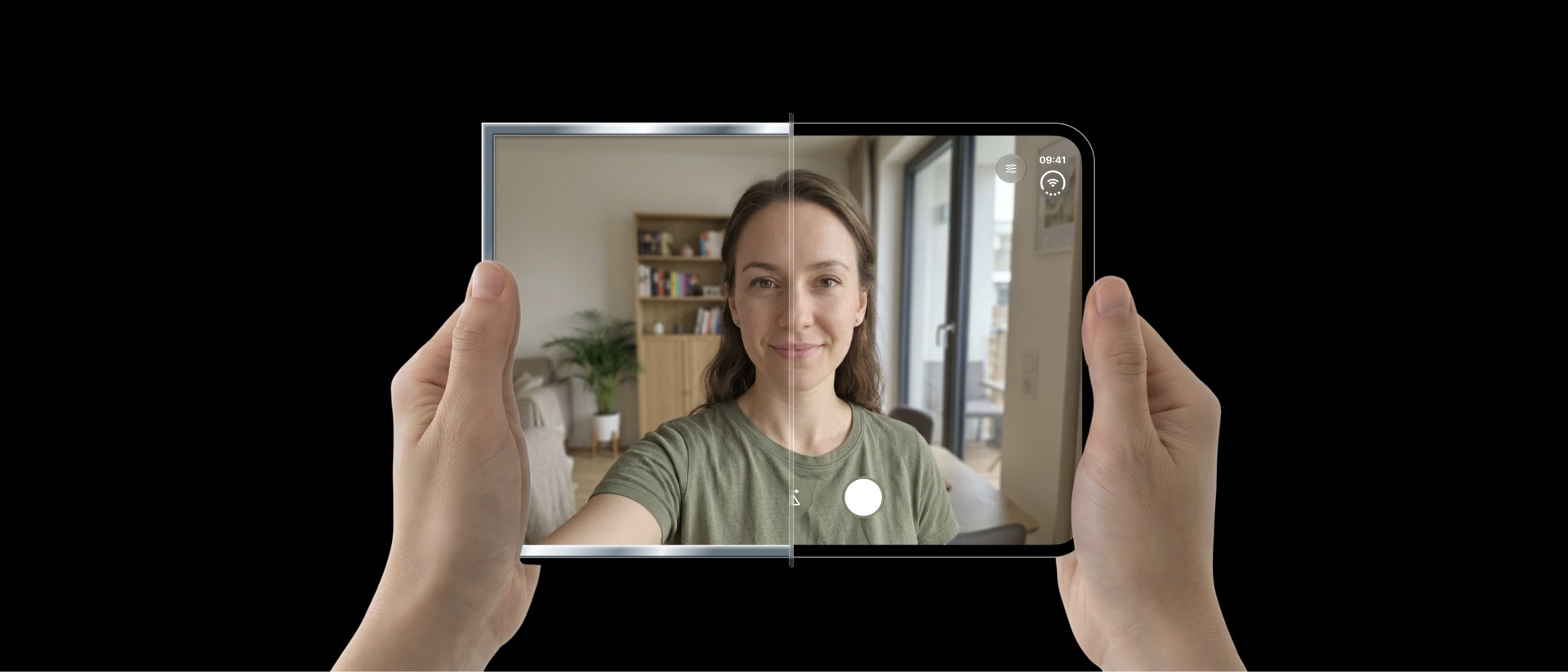
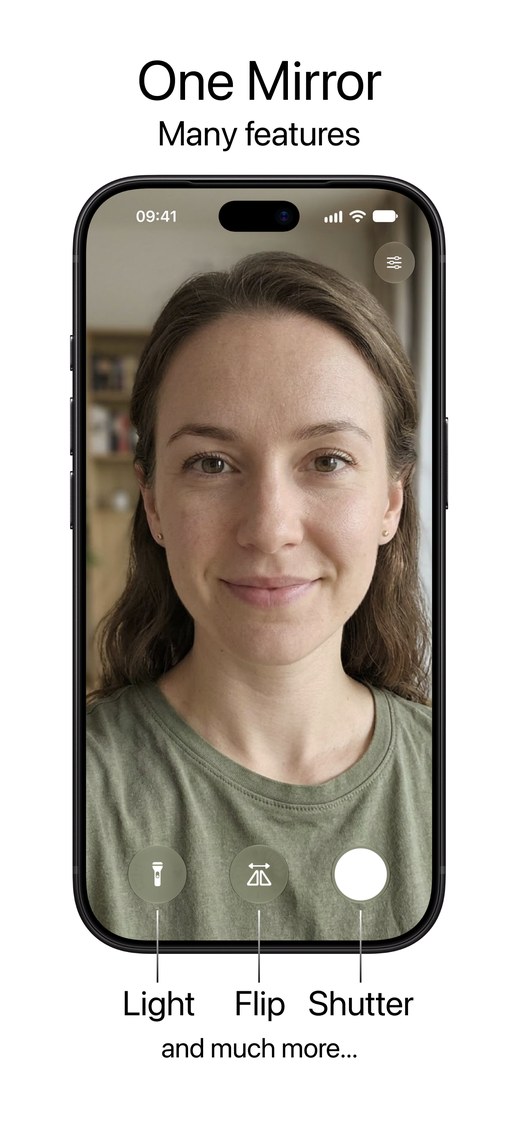
Mirror Yourself turns your iPhone1 into a beautiful, simple mirror. Open it, look, done — and when you want a closer look, it’s right there.
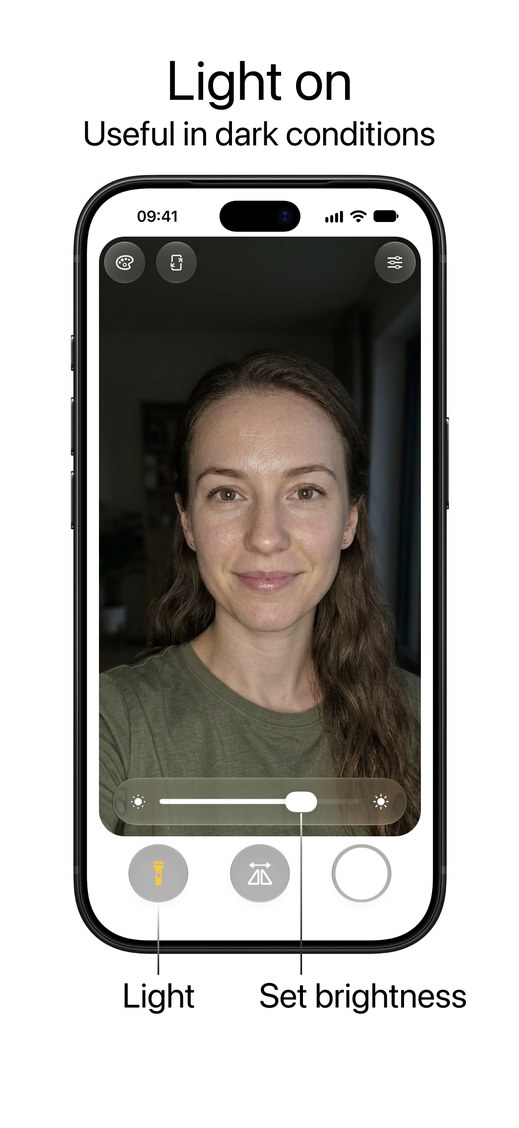
Light
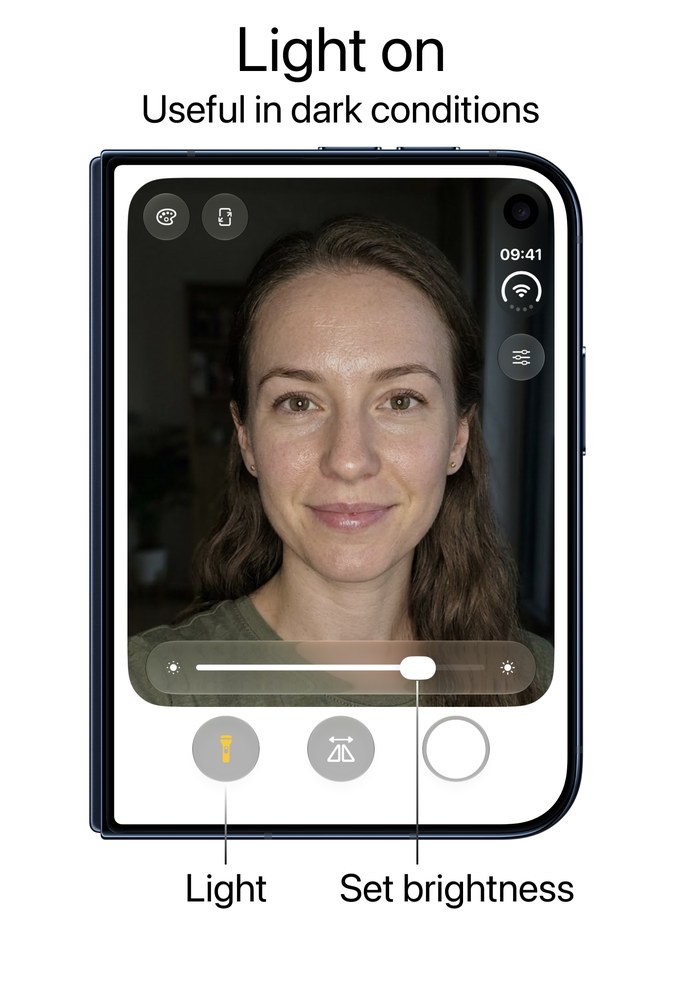
Turns the screen into a soft light around your face — for the morning, the evening or a dark room. You choose how bright.
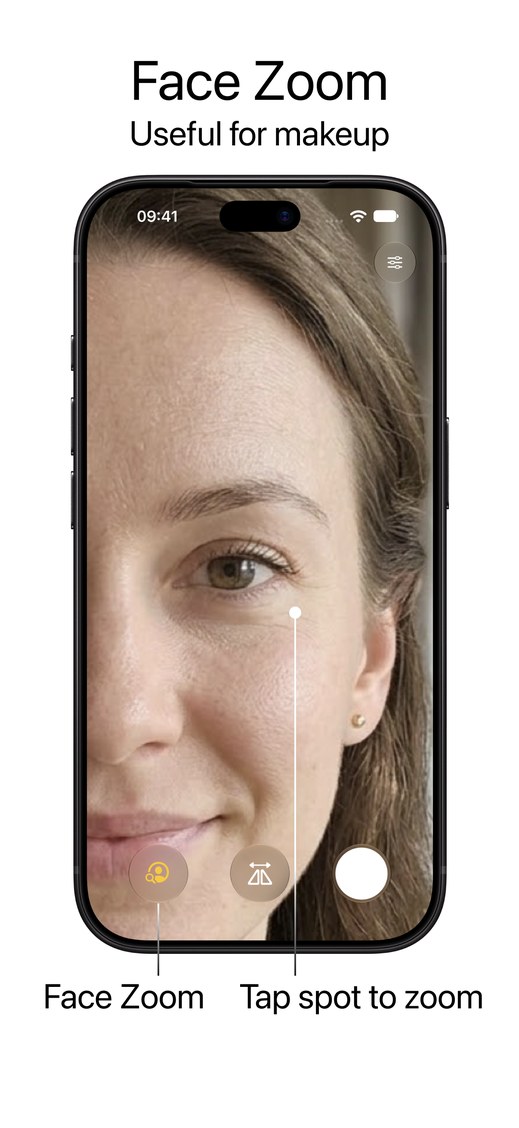
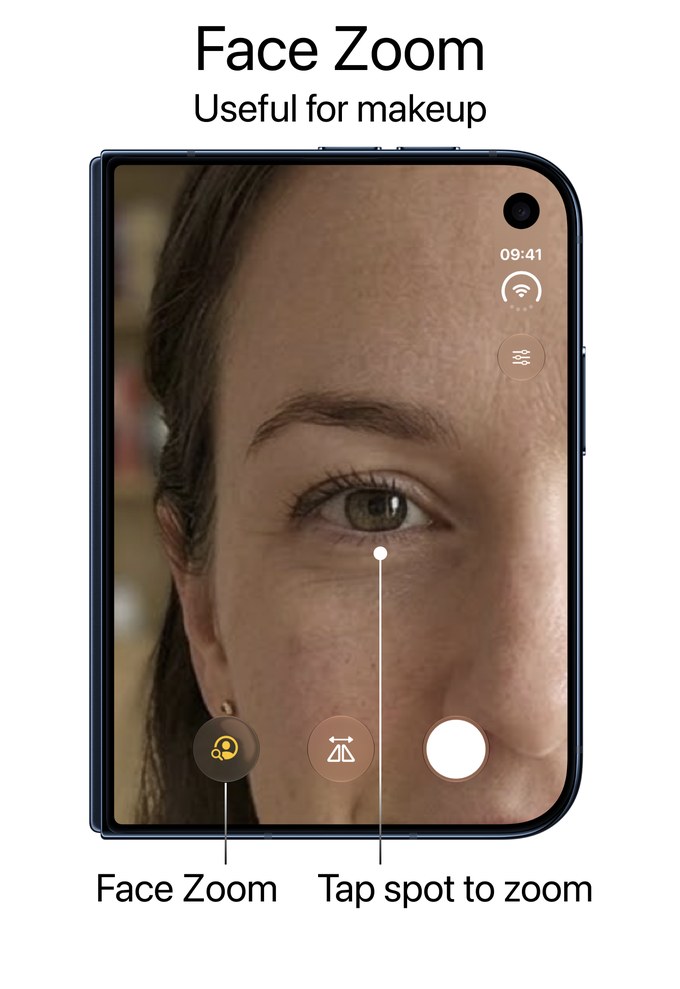
Face Zoom
Tap your lips, an eye or your nose and Mirror zooms in on it. The zoom follows your face as you move.
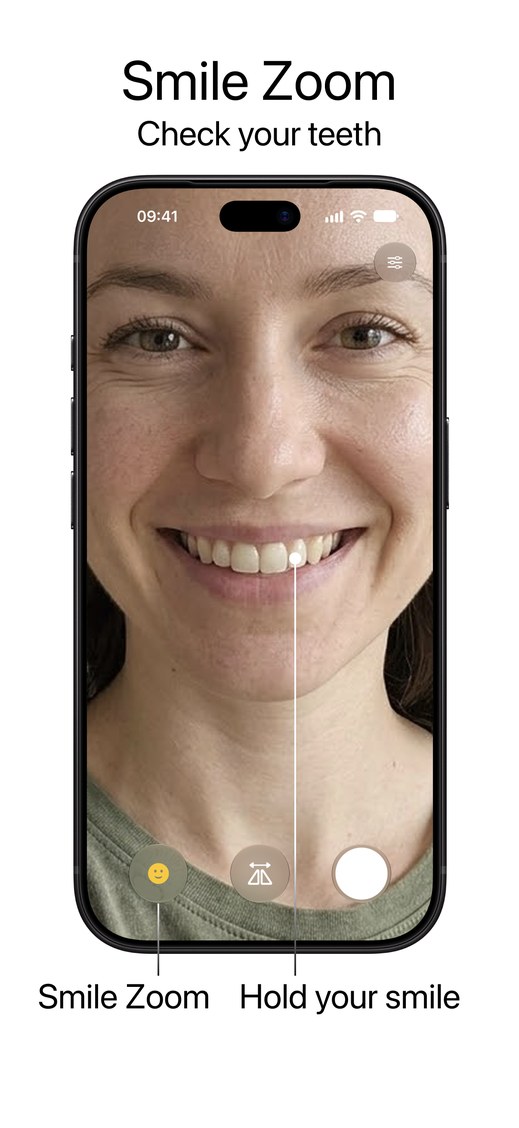
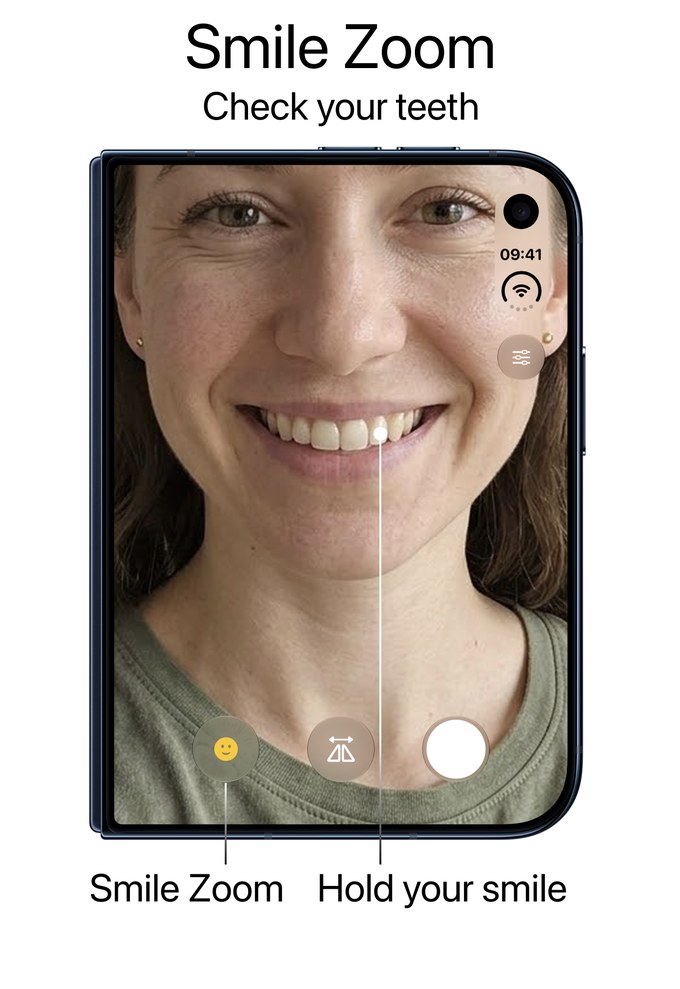
Smile Zoom
Smile for a second and the picture zooms in on your teeth — no hands needed.
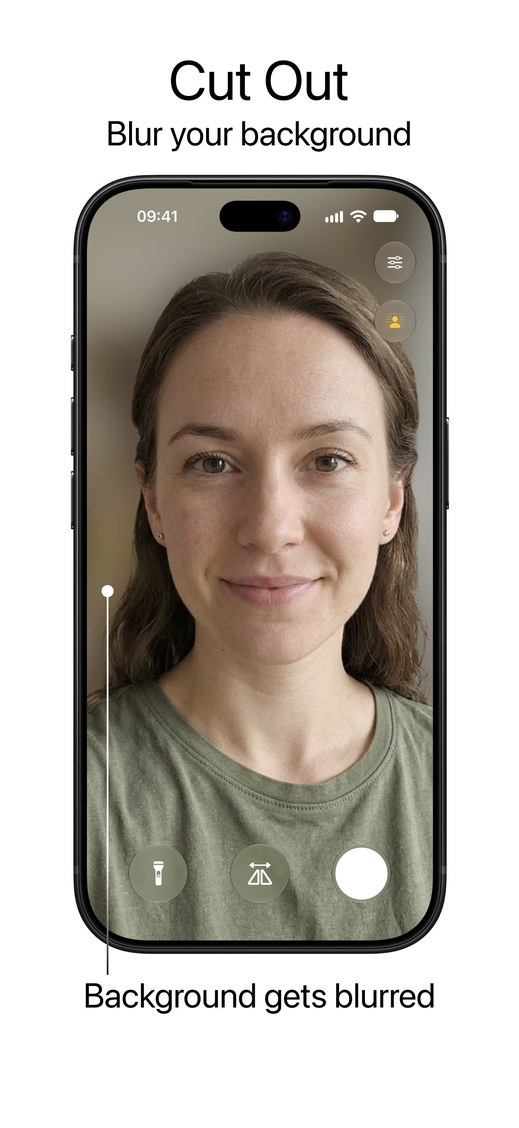
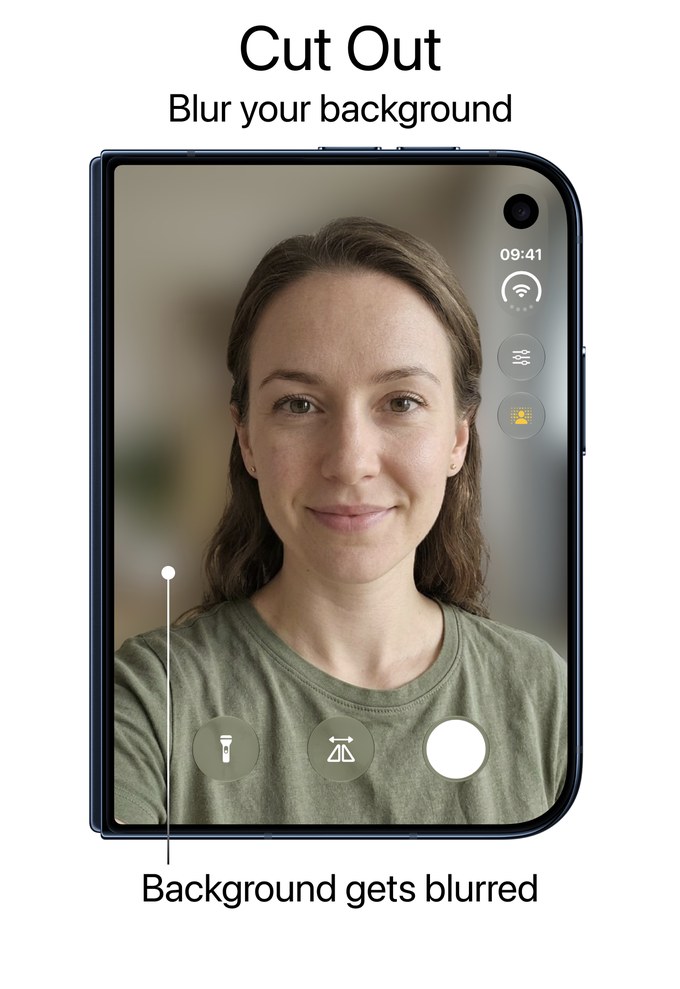
Cut Out
Keeps you sharp and blurs everything behind you, so the messy room disappears.
Flip
See yourself the way others see you instead of your mirror image.
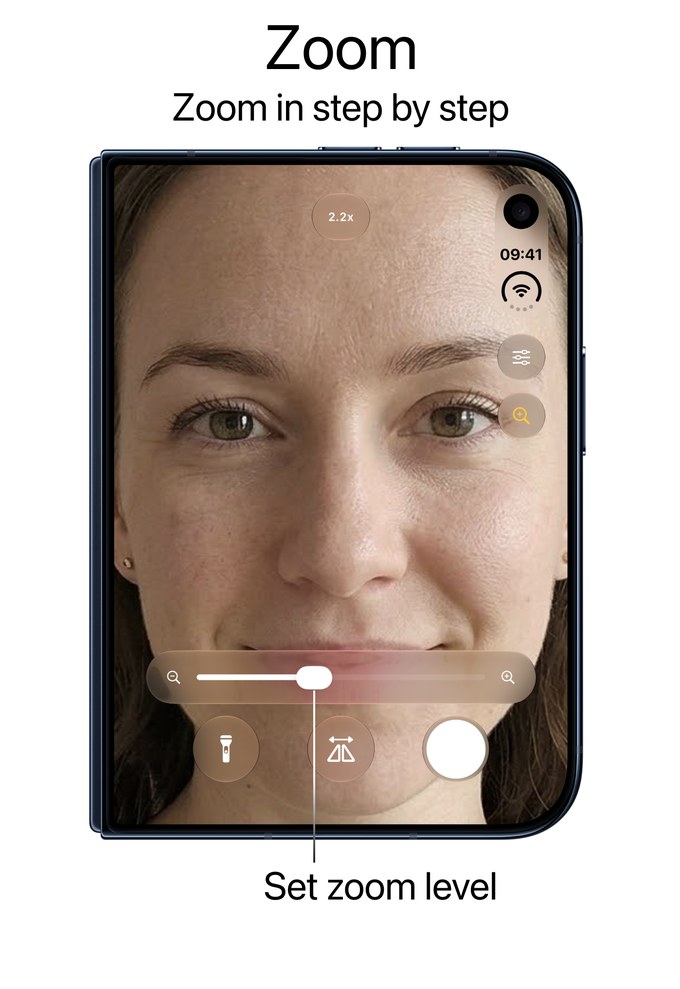
Zoom & exposure
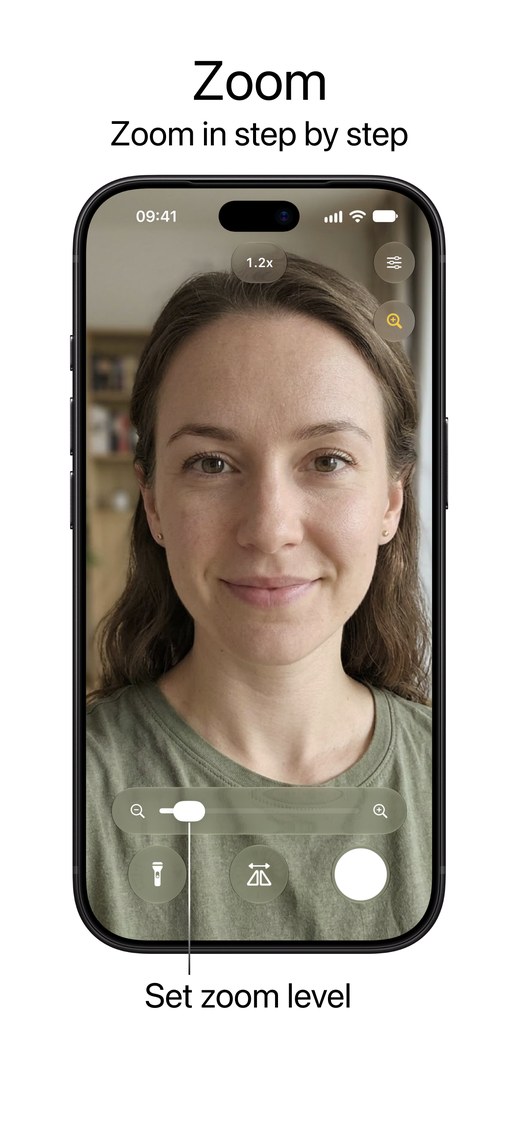
Zoom in up to 4× and make the picture brighter or darker, step by step.
Photos & self-timer
Take a photo straight into your photo library, right away or after 3 or 10 seconds.
Your own buttons
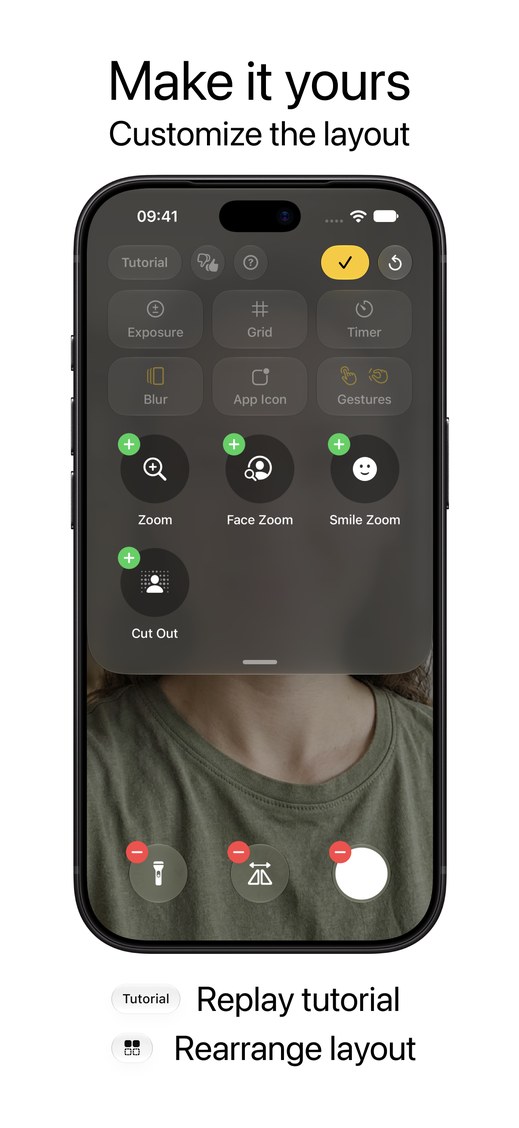
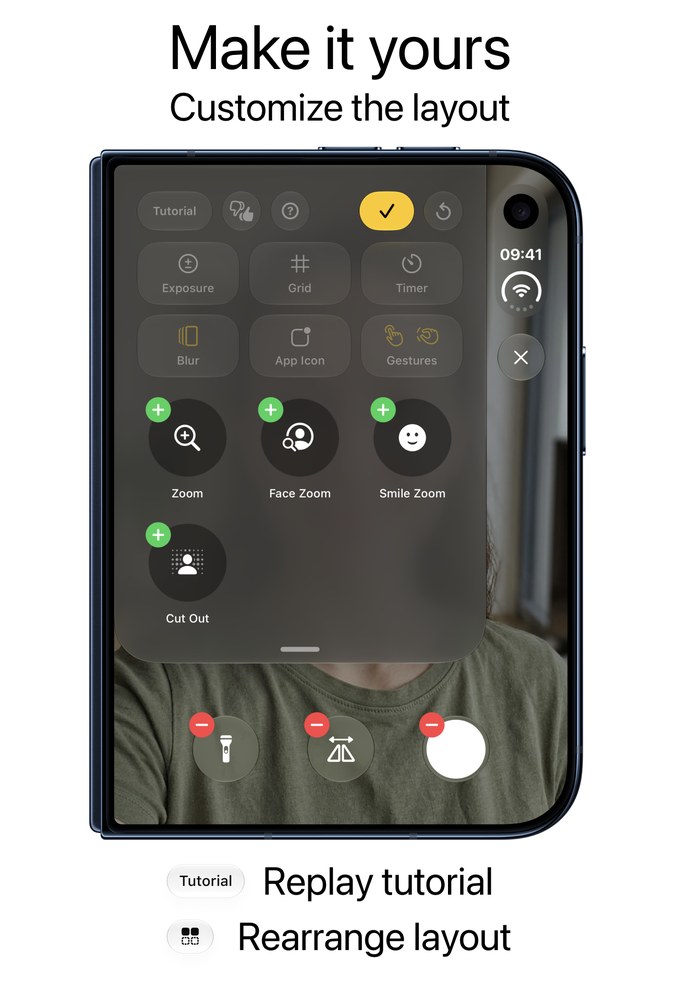
Choose which three features sit at the bottom. Everything else is one tap away in the settings panel.
Made for every iPhone
Built for iOS 26 with Liquid Glass, ready for iPhone Duo8 and available in 11 languages.
How to use Mirror.
The same guide as the Help button in the app: every gesture, every button and what it does.
Gestures
Hold
Hold your finger on the screen to freeze the picture. Let go to continue.
Pinch
Pinch with two fingers to zoom in and out.
Camera Control
On iPhone1 16 and later: press the Camera Control lightly and slide your finger on it to zoom. Press lightly twice to switch to exposure. Press it fully to take a photo.
Buttons
Choose in the settings panel which three of them appear at the bottom of the screen. A feature you switch on that is not in the bar appears as a gold button below the settings button — tap it to turn the feature off or change its settings.
Light
Turns the screen into a soft light around your face. The slider below the picture makes it brighter or dimmer. The palette and the frame button open pages for the light’s color, from cold to warm white, and for how wide the white frame is.
Flip
Shows you the way others see you instead of your mirror image. Tap again to switch back.
Shutter
Takes a photo and saves it to your photo library. With the timer on, it counts down first; tap again to stop the countdown.
Zoom
Shows a slider to zoom in up to 4×. You can also pinch with two fingers.
Face Zoom
Tap your lips, an eye or your nose to zoom in on it. The zoom follows your face. Tap the same spot again to zoom out.
Smile Zoom
Smile for a second and the picture zooms in on your teeth.
Cut Out
Keeps you sharp and blurs everything behind you. Its background button opens a page where you choose how strong the blur is, or a black or white background instead.
Open Mirror quickly
Action Button
On iPhones1 with an Action Button: open Settings → Action Button, choose Controls and pick Mirror. One press then opens the mirror.
Widget
Touch and hold the Home Screen, tap Edit → Add Widget and search for Mirror. One tap on the widget opens the mirror. It also fits on the Lock Screen.
Settings
Settings button
The round button in the top right corner opens the settings panel with all other features. Pull its handle up to close it.
Exposure
Makes the picture brighter or darker. Tap the value to go back to 0.0 EV. Tap ✓ when you’re done.
Grid
Shows guide lines over the picture: rule of thirds, golden ratio, a fine grid, center lines or diagonals. Tap ✓ when you’re done.
Timer
Delays the shutter by 3 or 10 seconds. Tap again to switch between 3 s, 10 s and off.
Blur
Blurs the picture when you switch apps, so nobody sees it in the app switcher.
App Icon
Chooses which icon Mirror shows on your Home Screen: Default, Dark, Christmas or Christmas Dark.
Help
The round question mark button opens this guide inside the app.
Gestures
Choose whether holding the screen freezes the picture and whether pinching zooms.
Edit
Choose which three buttons appear at the bottom: tap − to remove one, + to add one, or drag a button to its place.
Reset
Puts the buttons back where they were at the start.
Tutorial
Plays the short tour through the app again.
Rate Mirror
Opens the App Store’s review dialog, so you can tell us what you think of Mirror. After you have used it, the button takes a break for a few months.
Questions? Answers.
Why is the picture blurred?
Without a subscription you can try every button and setting, but the camera picture stays blurred and photos can’t be taken. Start the yearly subscription — with a free first week if your Apple Account hasn’t used it before — to see yourself sharp.
How do I cancel the subscription?
Open Settings → your name → Subscriptions on your iPhone. During the free week you can also tap the gift button at the top left of the app and then “Manage subscription”. Cancel at least 24 hours before the free week or the current year ends.
Does Mirror work without the internet?
Yes. Everything happens on your iPhone. Only the subscription itself is handled by Apple through the App Store.
Where are my photos saved?
Only in your own photo library. Mirror can add photos but cannot see your existing ones, and nothing is ever sent to us.
Why did Face Zoom not zoom in?
Face Zoom needs to see your face. Tap directly on your lips, an eye or your nose, with enough light in the room — the Light button helps in the dark.
A button is missing at the bottom.
Open the settings panel: every feature that is not at the bottom is there as a tile. Tap Edit to put it back into the bar, or the reset arrow for the original layout.
Does Mirror work on iPhone Duo?
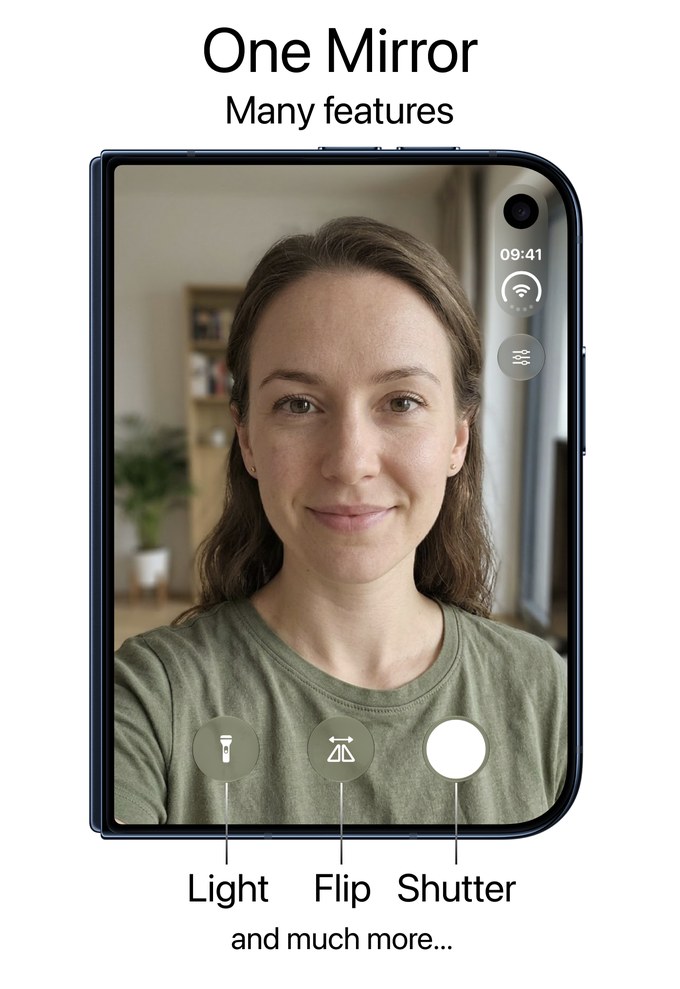
Yes. On iPhone Duo8 the settings button and the gold buttons sit in the system’s column along the side. Tab bars, switches and cards stay clear of that column, so everything can be pressed, on the folded and on the open device.
Which languages does Mirror speak?
English, German, Chinese (Simplified), Hindi, Spanish, Arabic, French, Portuguese, Russian, Italian and Japanese.
App Privacy.
Data Not Collected
The developer does not collect any data from this app. Everything happens on your iPhone, and the app works completely offline.
- The camera picture is processed only on your iPhone. It is never stored or sent anywhere.
- Photos you take are saved only to your own photo library. The app can only add photos — it cannot see your existing ones.
- No account, no tracking, no analytics, no advertising.
Try it free.
Download Mirror Yourself and try every button and setting for free. Until you subscribe, the camera picture is blurred and photos can’t be taken. To use it fully, start the yearly subscription — the first week is free*.
* Once per Apple Account. After the free week the yearly subscription starts automatically unless you cancel at least 24 hours before it ends. Manage or cancel anytime in your Apple Account settings. Subscription details
Information.
- Seller
- Luis Salzmann
- Languages
- English, German, Chinese (Simplified), Hindi, Spanish, Arabic, French, Portuguese, Russian, Italian, Japanese
- Price
- Free to try · yearly subscription with a free first week
- Privacy
- Data Not Collected
- Support
- How to use Mirror · leanderapps@icloud.com
- Legal
- Privacy Policy · Terms of Use
Questions?
Feedback or ideas for Mirror Yourself? Please mention your iPhone model and iOS version.
leanderapps@icloud.com